
Introduction
vSeva is an app for Jain Vihar Seva groups. Sevaks record each Vihar in a minute, and the Captain sees the whole group: who served, which routes, how many kilometres, and how the year is going.
It serves three kinds of people:
- Vihar Seva groups that want one organized record of their Seva instead of scattered messages and forms.
- Captains who look after the group: members, routes, contacts, approvals and reports.
- Sevaks who walk, record their Vihars and follow their own progress and Sankalp.
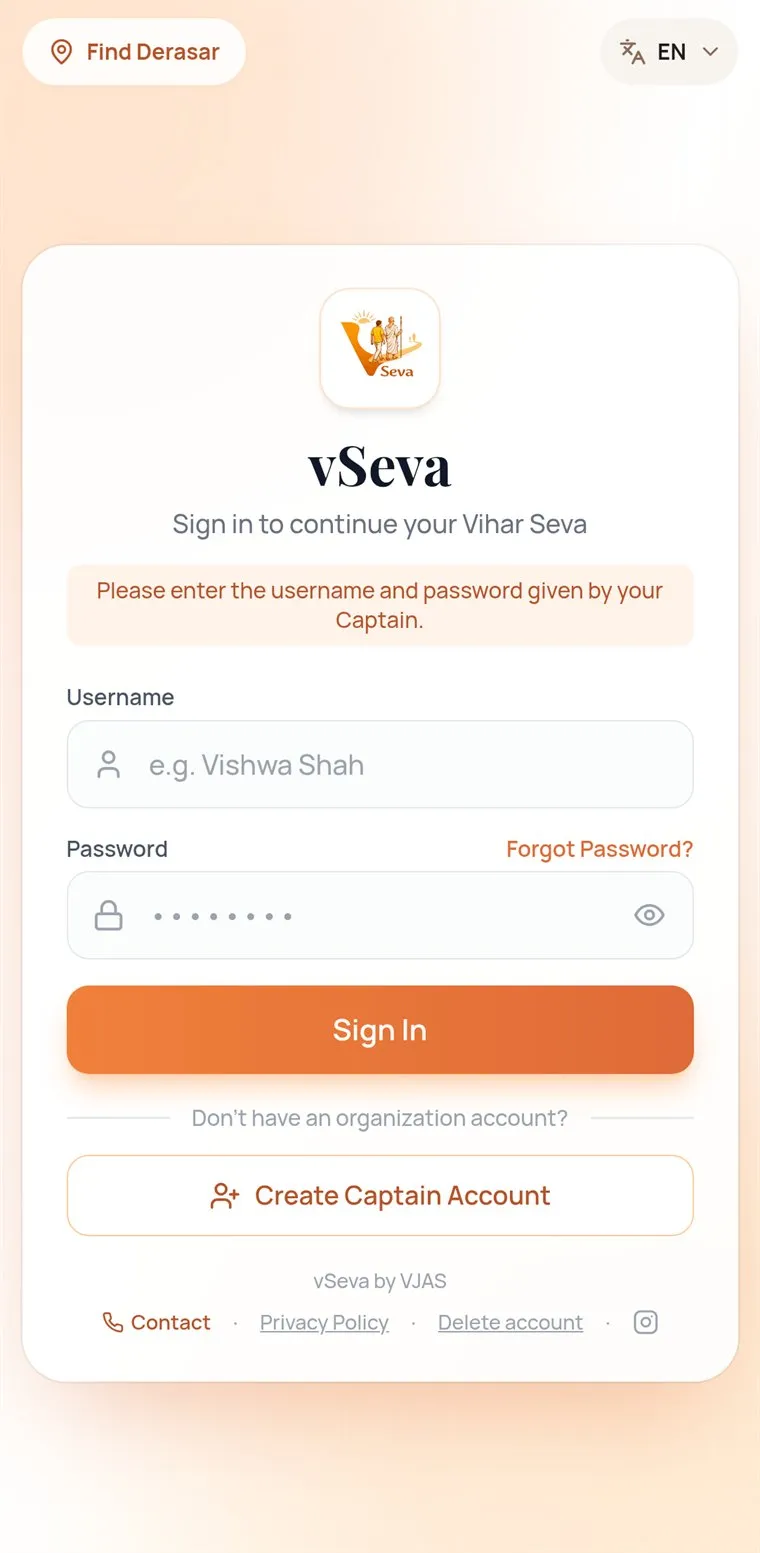
vSeva works as an app on Android phones and in any browser at vseva.vjas.in. On an iPhone, open the site in Safari and use Share → Add to Home Screen. The app is available in English, ગુજરાતી and हिंदी: tap EN at the top of any screen to switch.
Understanding the organization
Each group has one Captain account and any number of Sevak accounts. The Vice Captain is named in the group’s details and contacts; it is not a separate account type.
| Action | Captain | Sevak |
|---|---|---|
| Record a Vihar | Counts at once | Counts after approval |
| Approve entries | Yes | No |
| Edit or delete entries | Yes | No |
| Statistics | Whole group | Own, plus Group Analytics |
| Sevaks, routes, contacts | Manages | Views contacts |
| Upcoming Vihar alert | Sends | Receives |
| Sankalp | Group Sankalp; can lock | Own Sankalp |
| Post in VChat | Always | If allowed |
| Export reports | Yes | No |
Captain responsibilities: keep the group details current, add Sevaks, maintain routes and emergency contacts, review submitted Vihars, send upcoming Vihar alerts and export reports.
Sevak responsibilities: complete your profile, record the Vihars you walk (one Sevak submits each Vihar for everyone on it), and keep an eye on your Sankalp.
Organization onboarding
A group starts with its Captain. The vSeva team reviews every new group before its account is created.
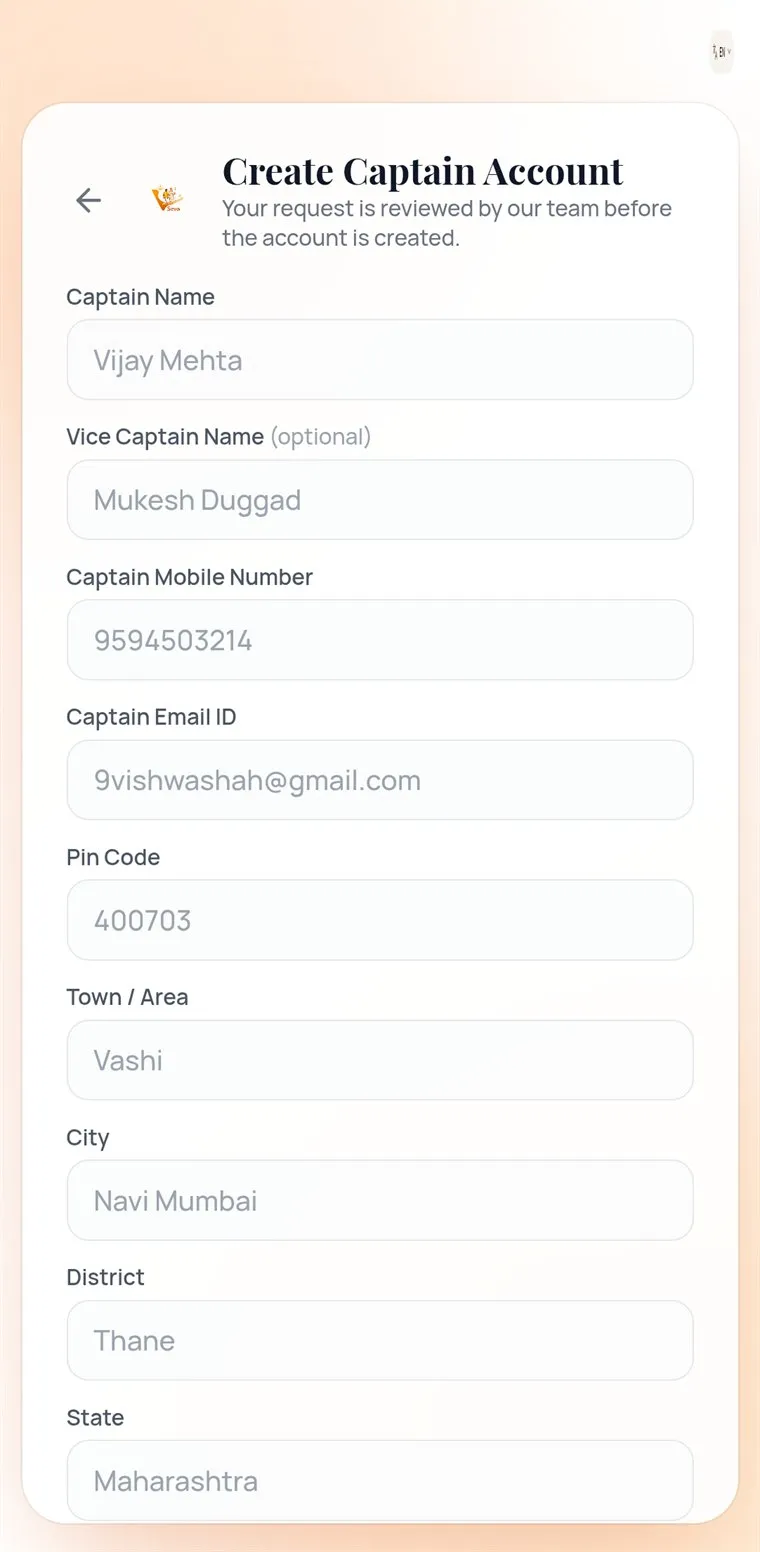
- Open the vSeva sign-in screen and tap Create Captain Account.
- Fill in the Captain’s name, an optional Vice Captain, the Captain’s mobile number and email, the Vihar Seva group and Sangh names, and the address. Entering the PIN code fills in the town, city, district and state.
- Submit. The request is verified by hand, usually within 24 to 48 hours. Tap Approve via WhatsApp to send the details to the team and speed it up.
- Once approved, the Captain signs in with their email as username and mobile number as password.
- Tap your photo → Profile & Settings, check the group details and the names, then Save Changes.
- In Profile & Settings, Edit the Group Sankalp: the number of Vihars the group aims for this year.
- Go to More → Manage Routes and add your routes: From, To, kilometres and an optional Via.
- Go to More → Add Sevaks and add your members (see the next section).
- Go to More → Contacts and add the emergency contacts every Sevak should see.
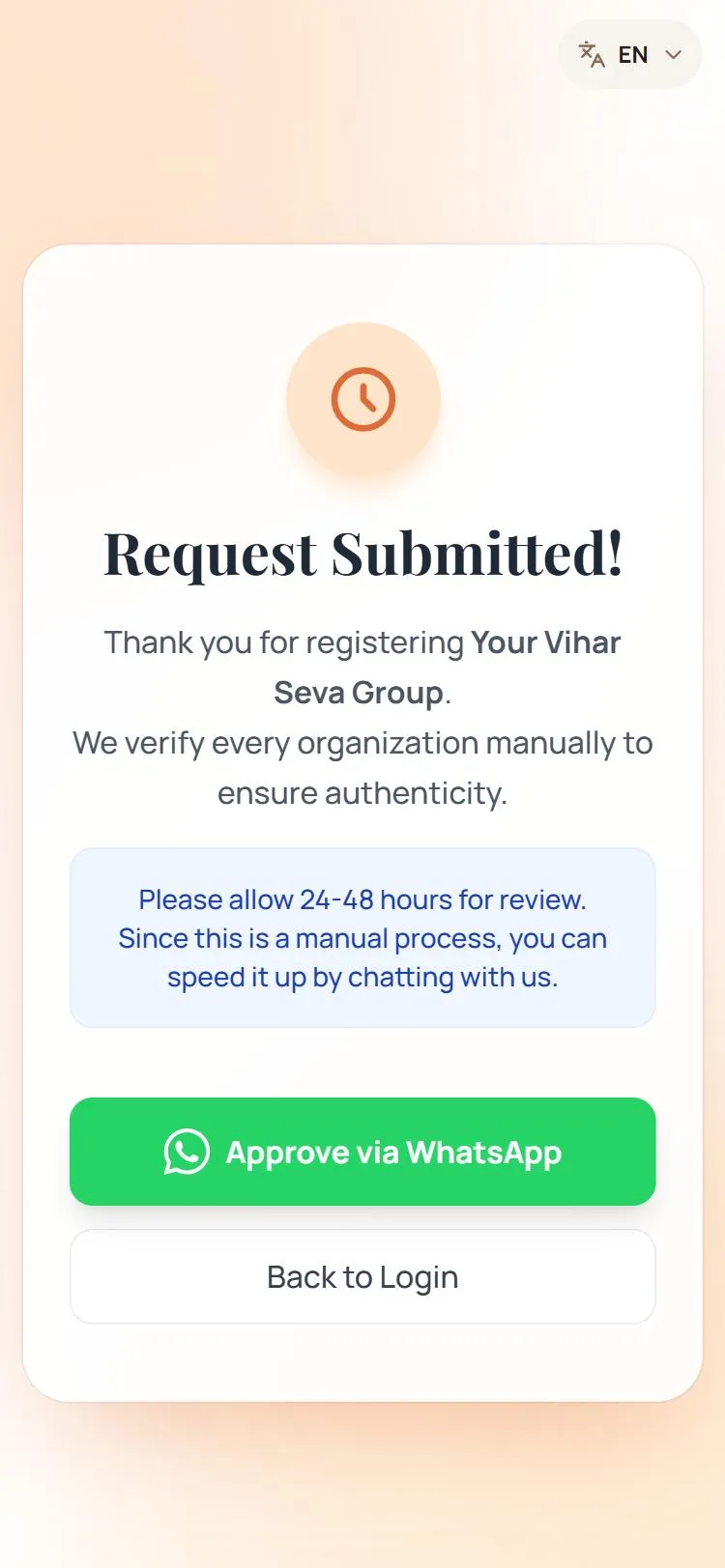
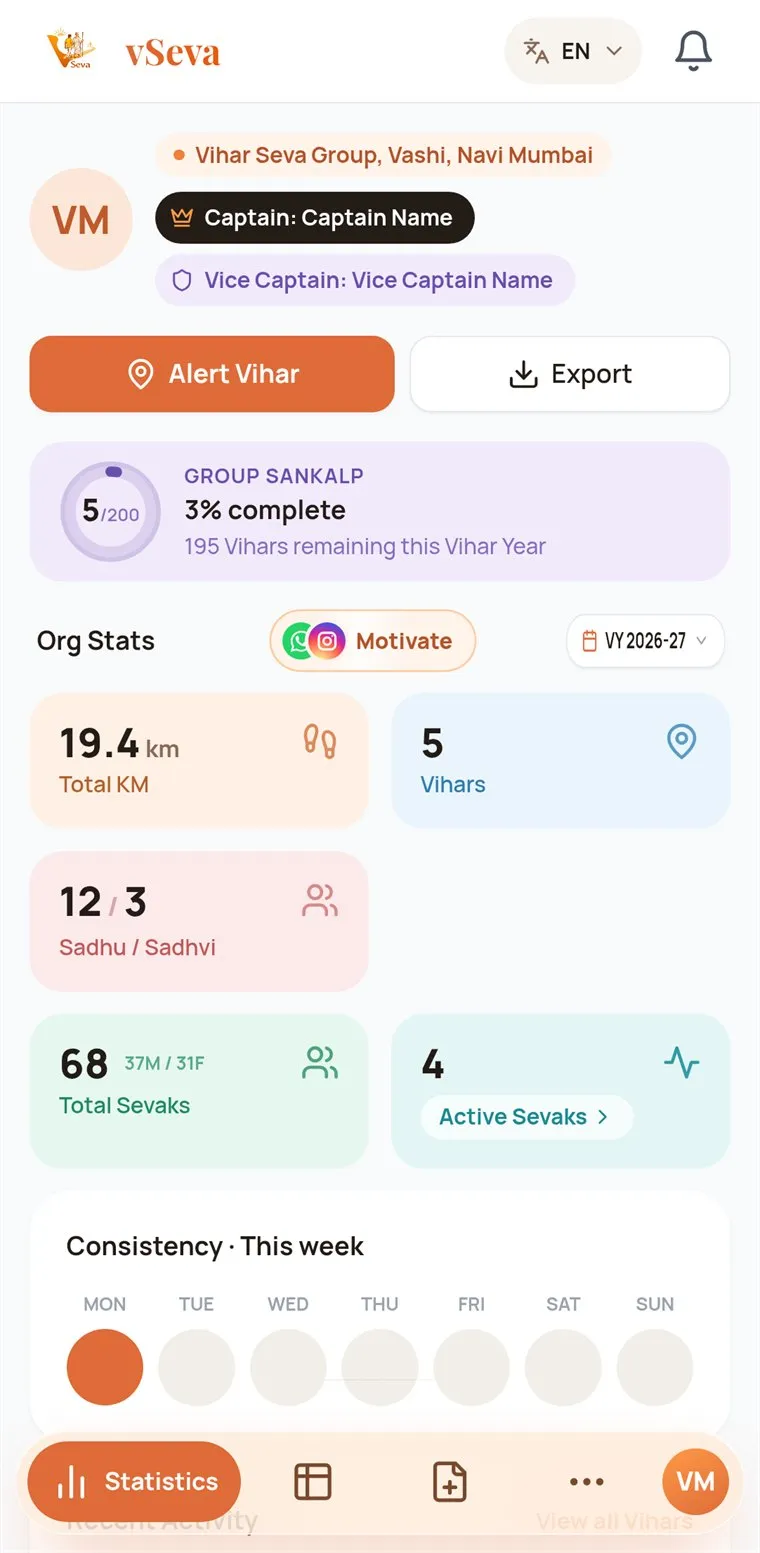
Steps the vSeva team does: verifying the request and creating the Captain account. Everything after that, the group does itself. Need a hand? Contact us for onboarding help.
Sevak onboarding
Sevaks don’t register themselves. The Captain creates each Sevak’s login, so only your group’s members join your group.
For the Captain: adding a Sevak
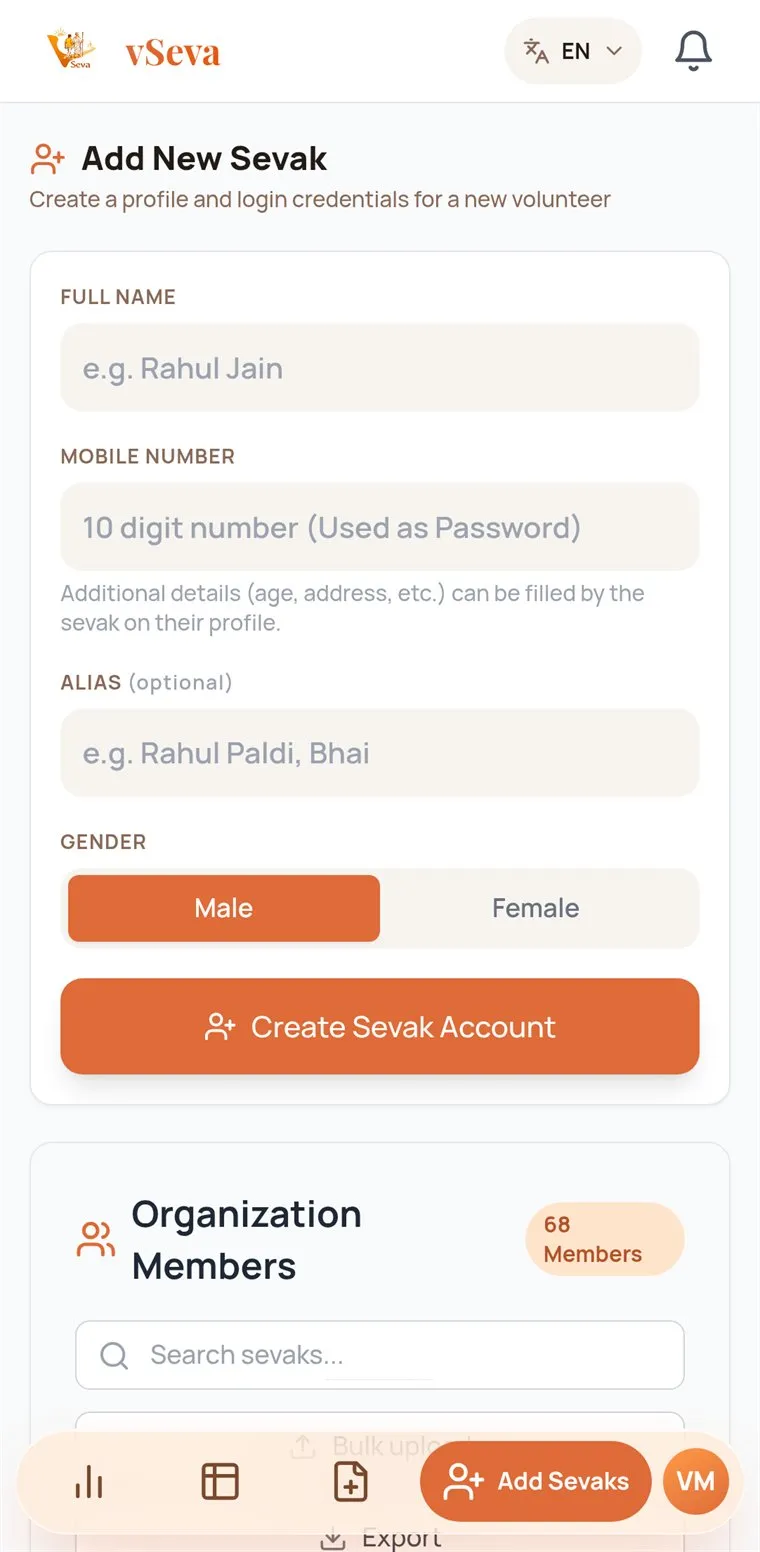
- Go to More → Add Sevaks.
- Enter the full name and mobile number, an optional alias (other names the Sevak is known by), and choose the gender.
- Tap Create Sevak Account. vSeva makes the username from the name; the password is the mobile number.
- Share the login shown on screen with the Sevak on WhatsApp in one tap.
For the Sevak: your first sign-in
- Open the vSeva app on Android, or vseva.vjas.in in your browser.
- Sign in with the username from your Captain and your mobile number as the password.
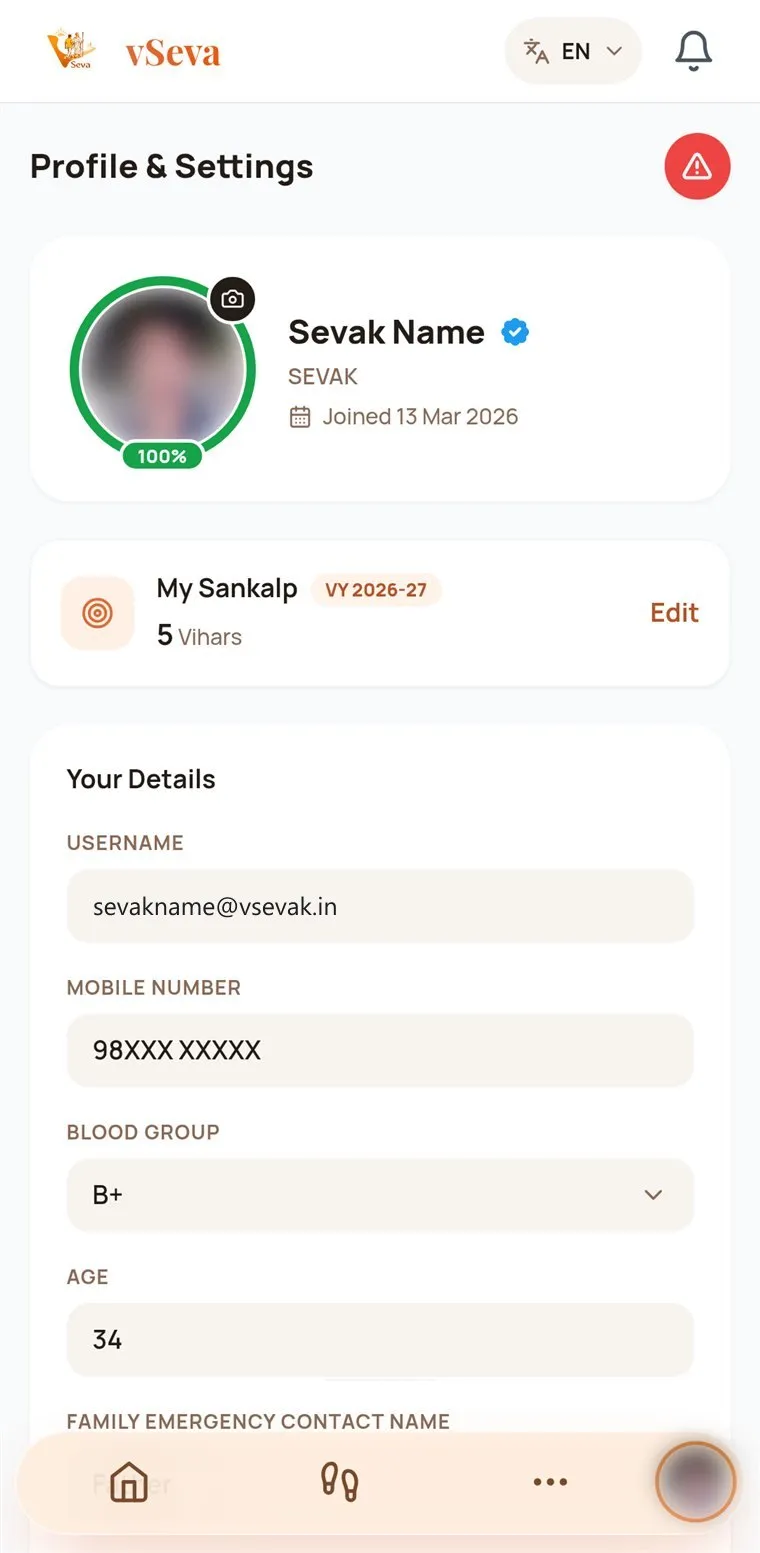
- vSeva asks you to complete your profile. Six details take it to 100%: blood group, age, family emergency contact name, family emergency number, occupation (if Other, add the details) and address. The ring around your photo shows how complete you are.
- Tap your photo → Profile & Settings to check your group and Captain, fill Your Details and tap Save Changes.
Finding your way
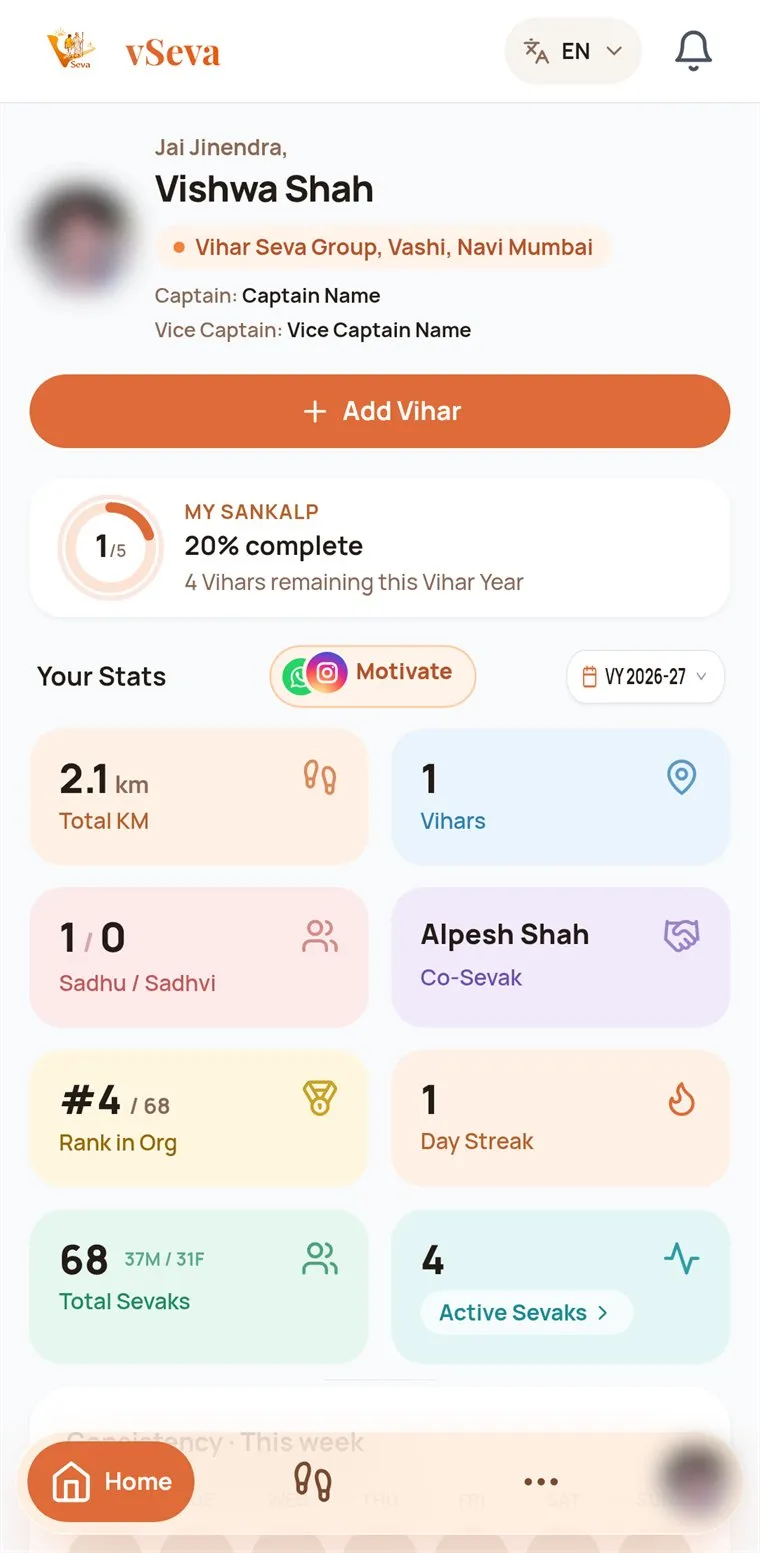
| Where | What you find |
|---|---|
| Home | Your Sankalp ring, your stats and the Add Vihar button |
| My Vihars | Every Vihar you were part of |
| More | Add Vihar, Group Analytics, VChat, Contacts, Notifications, Incidents |
| Your photo | Profile, Sankalp, ID card, password and notifications |
The Captain’s bottom bar has Statistics, View Entries, New Entry, More and the Captain’s photo.
Recording a Vihar
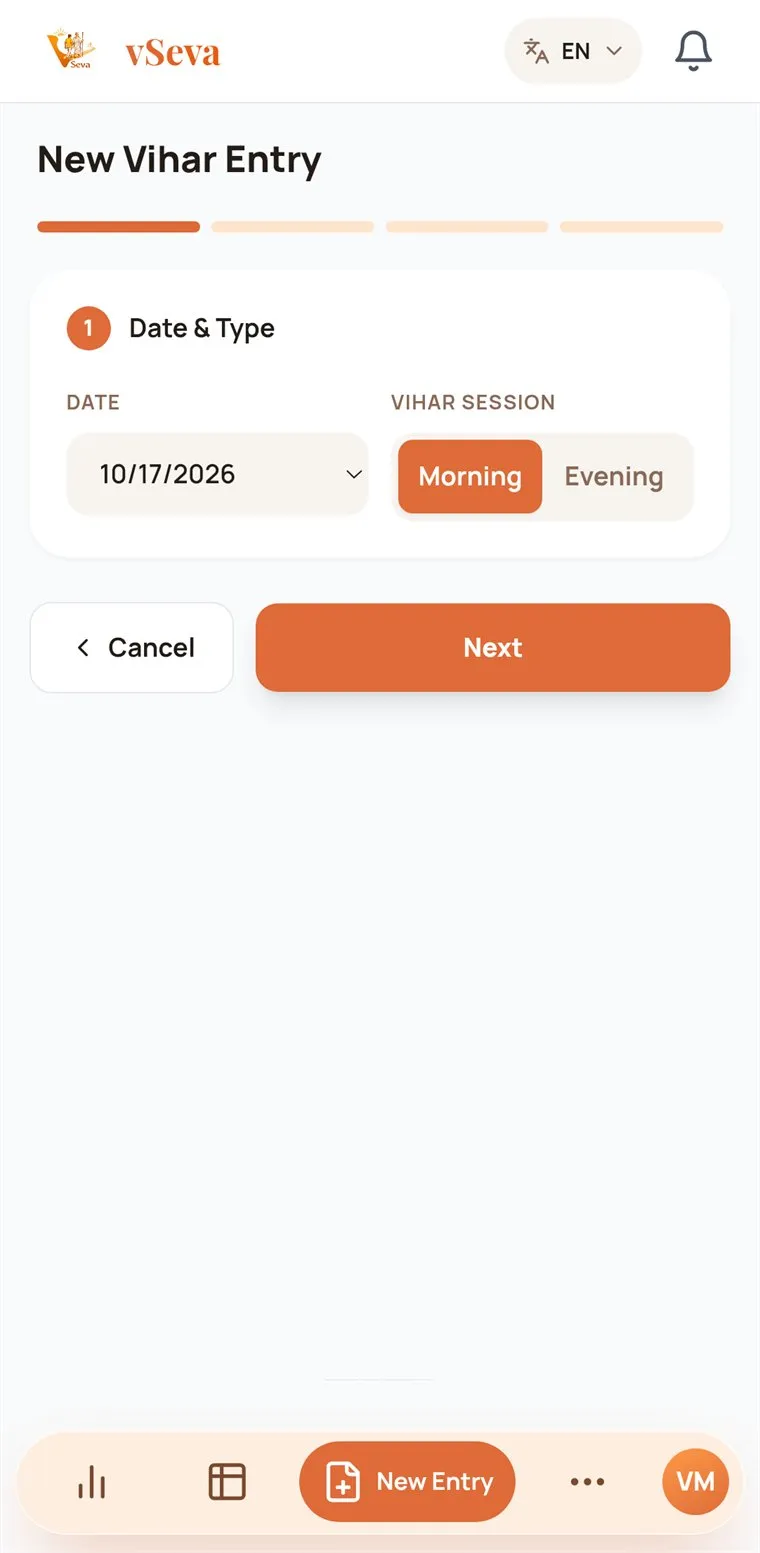
Sevaks tap Add Vihar on Home; the Captain taps New Entry. It is the same four-step form for both.
- Date & Type. The date (today by default) and the Vihar Session: Morning or Evening.
- Vihar Of & Route. Tap Sadhubhagwan and/or Sadhvijibhagwan and enter how many. Pick From and To; the distance comes from your group’s routes.
- Seva Requirements. Add every Sevak who walked (at least one). Answer Wheelchair and Car Seva (Updhi); if Yes, choose who.
- Instructions & Review. Optionally add the Samuday and notes, then tap Submit Entry.
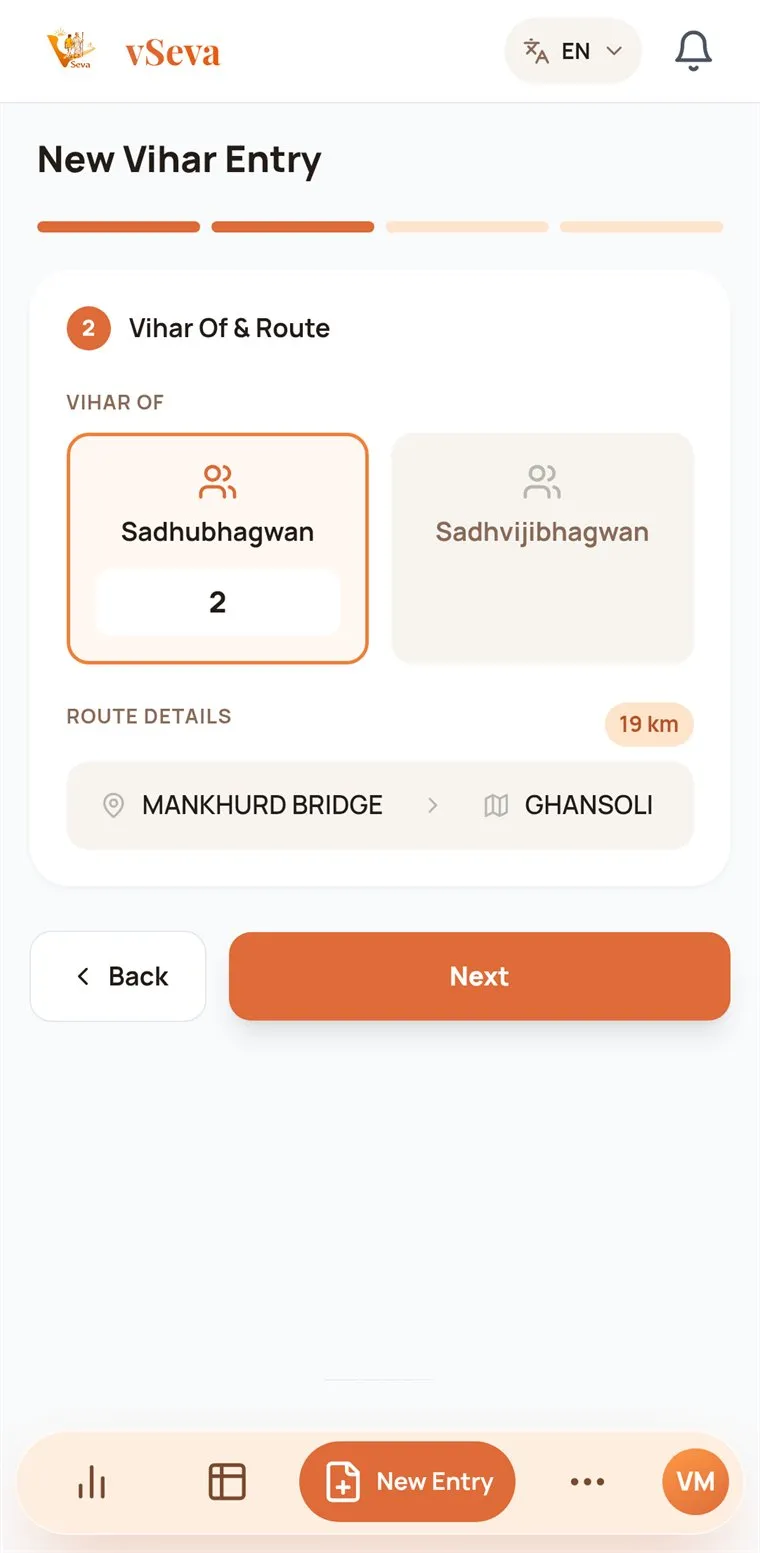
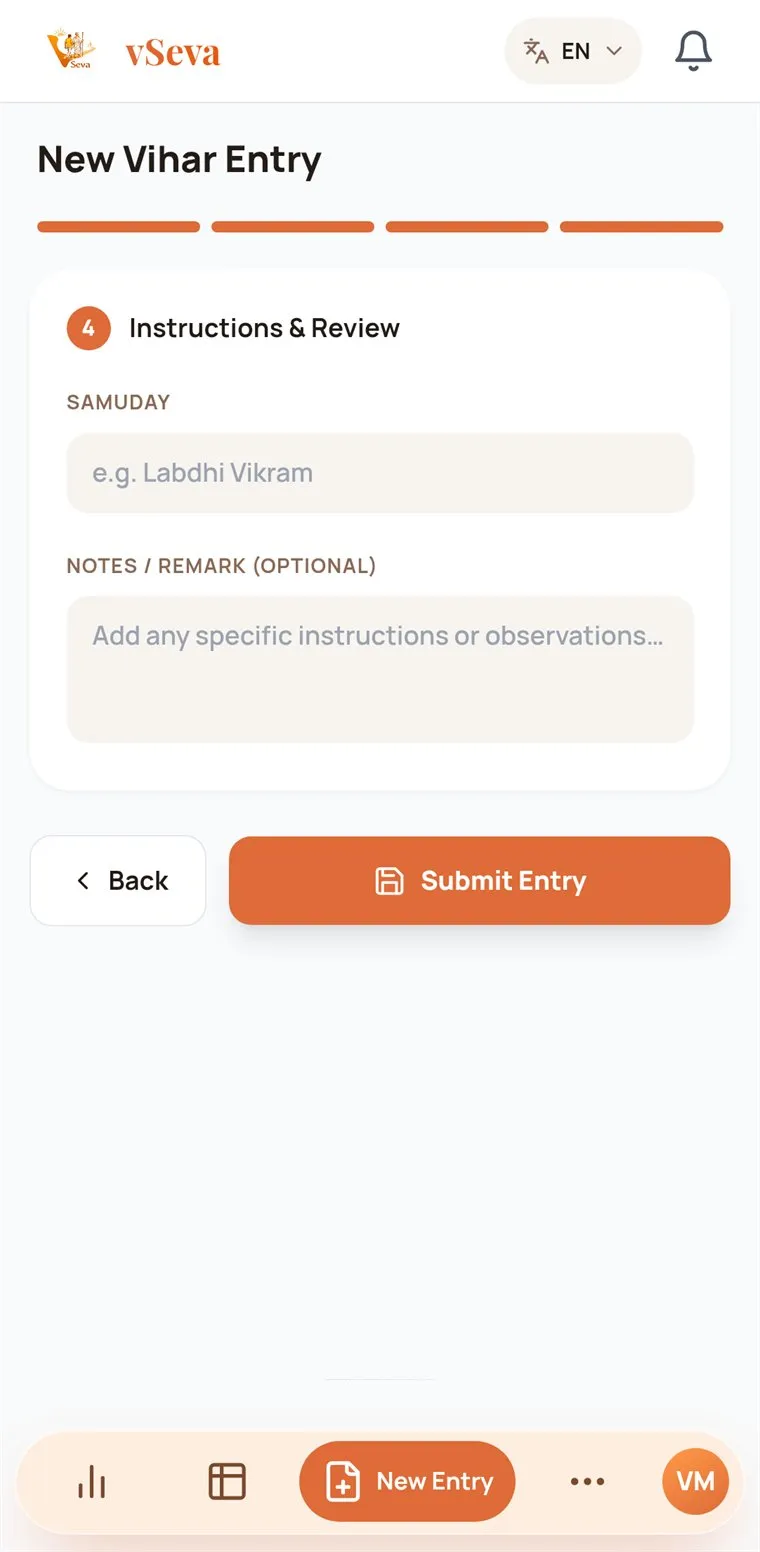
One Vihar, one entry. One Sevak submits each Vihar for everyone who walked. Others should not submit it again.
Approvals and entry status
A Vihar recorded by a Sevak shows in My Vihars as Pending captain approval until the Captain decides. It is counted in statistics only once approved.
The Captain opens More → Pending Approvals, opens the entry and chooses Approve, Edit Entry or Reject. A rejection notifies the Sevak who submitted it. Vihars the Captain records count at once, and everyone on them is notified.
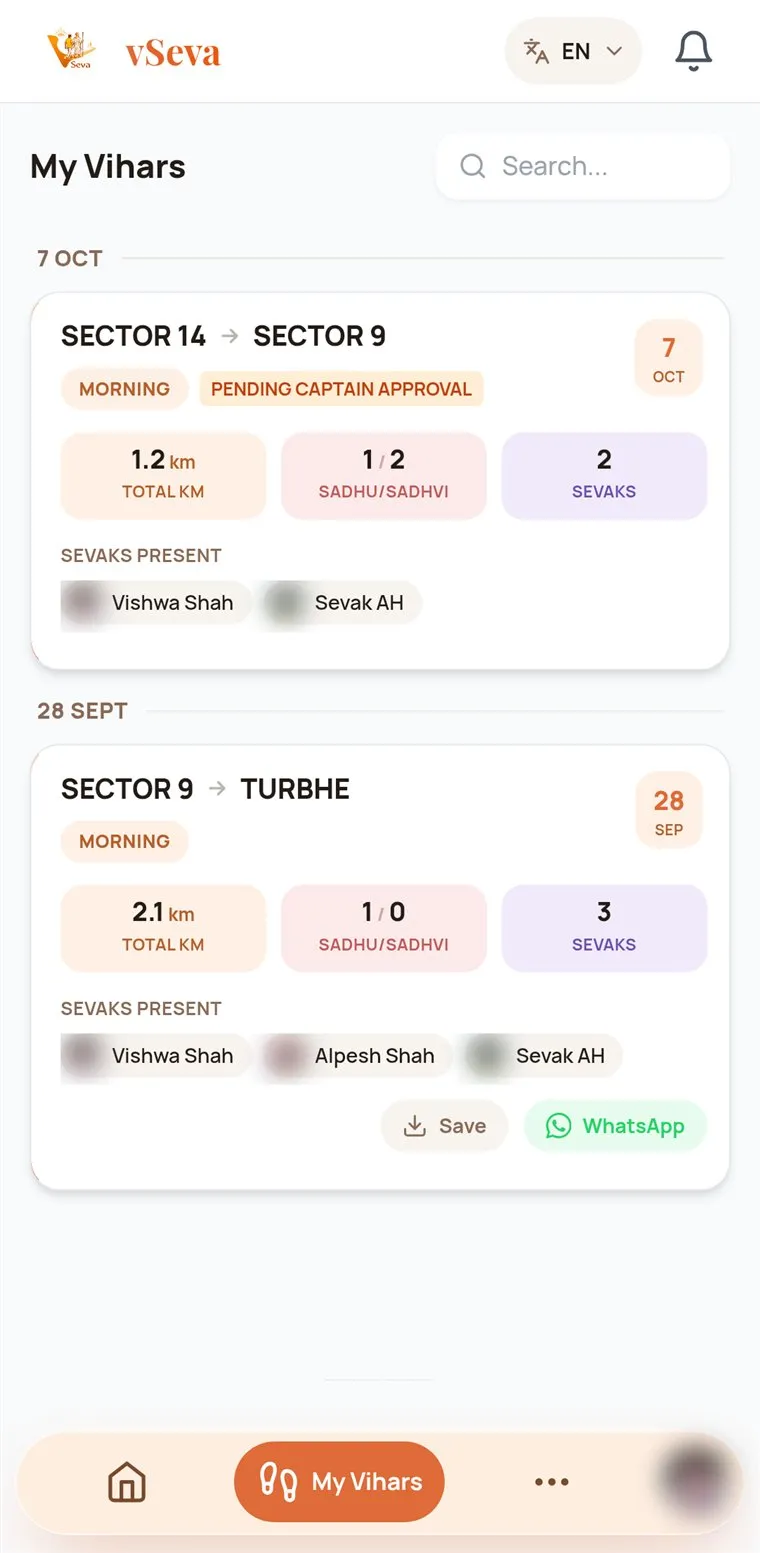
Dashboard and statistics
Statistics count approved Vihars in the selected Vihar Year. Change the year with the VY menu to see earlier years.
| Tile | Meaning |
|---|---|
| Total KM | Kilometres walked |
| Vihars | Number of Vihars |
| Sadhu / Sadhvi | Bhagwant served |
| Co-Sevak | Who you walk with most |
| Rank in Org | By Vihars, then kilometres |
| Day Streak | Days in a row |
| Total Sevaks | Members, male and female |
| Active Sevaks | Did a Vihar this year |
| Consistency | This week, day by day |
More → Group Analytics shows group totals, the longest Vihar, the top Sevaks and Sevikas, the last seven days and a monthly calendar.
Vihar Year and Sankalp
A Vihar Year runs from 14 October to 13 July; the months between are Chaturmas.
- My Sankalp is your Vihar target for the year. It starts at 5; change it in Profile → My Sankalp → Edit. The ring on Home shows your progress.
- Group Sankalp is set by the Captain for the whole group. The Captain can turn off Allow Sevaks to edit their Sankalp to lock everyone’s target.
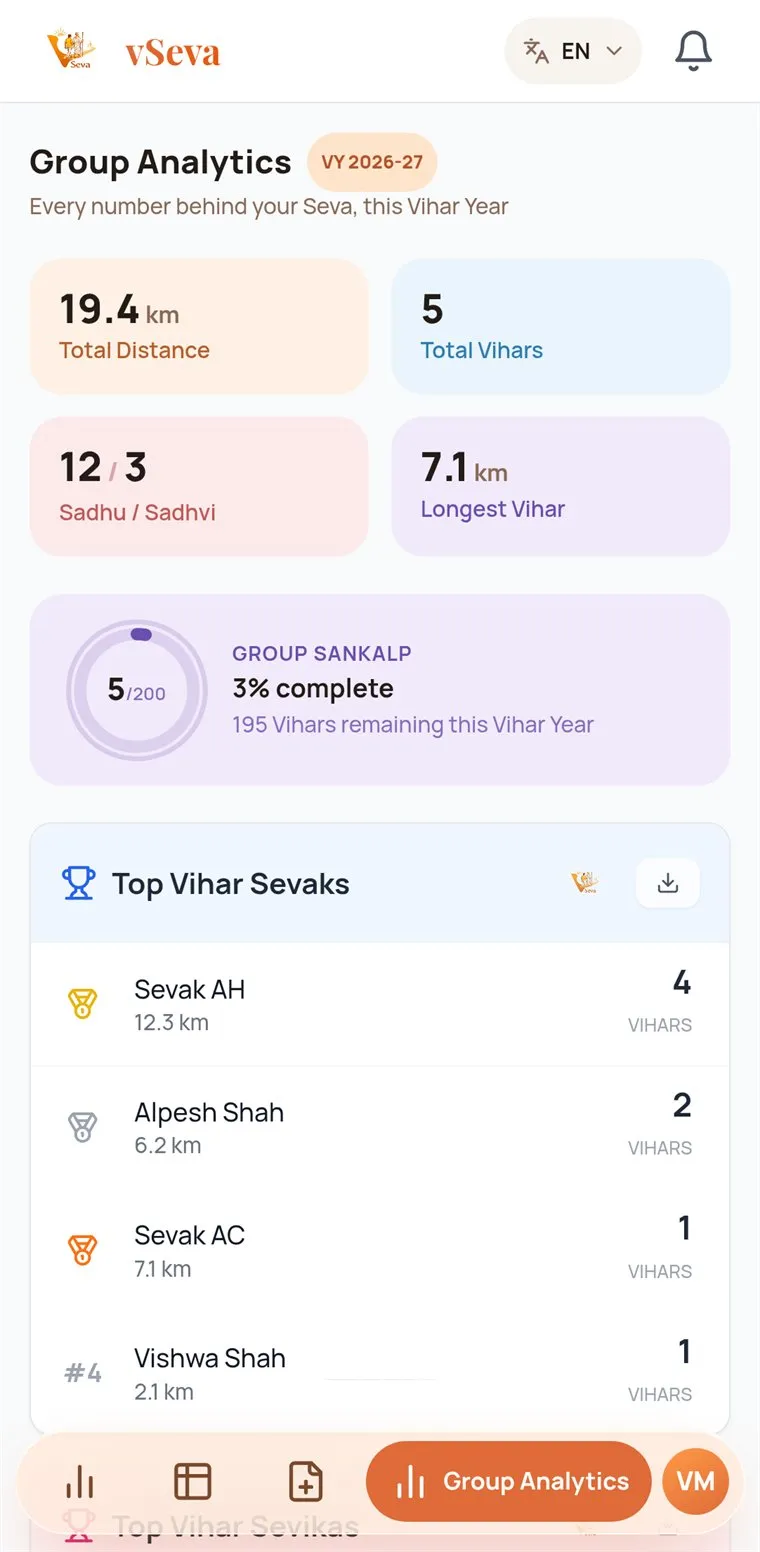
Captain workflows
| To… | Go to |
|---|---|
| Approve entries | More → Pending Approvals |
| Record a Vihar | New Entry |
| Edit or delete entries | View Entries |
| Alert an upcoming Vihar | Statistics → Alert Vihar |
| Manage members | More → Add Sevaks |
| Manage routes | More → Manage Routes |
| Manage contacts | More → Contacts |
| See group analytics | More → Group Analytics |
| Export reports | Statistics → Export |
| Follow up incidents | More → Incidents |
Upcoming Vihar alerts
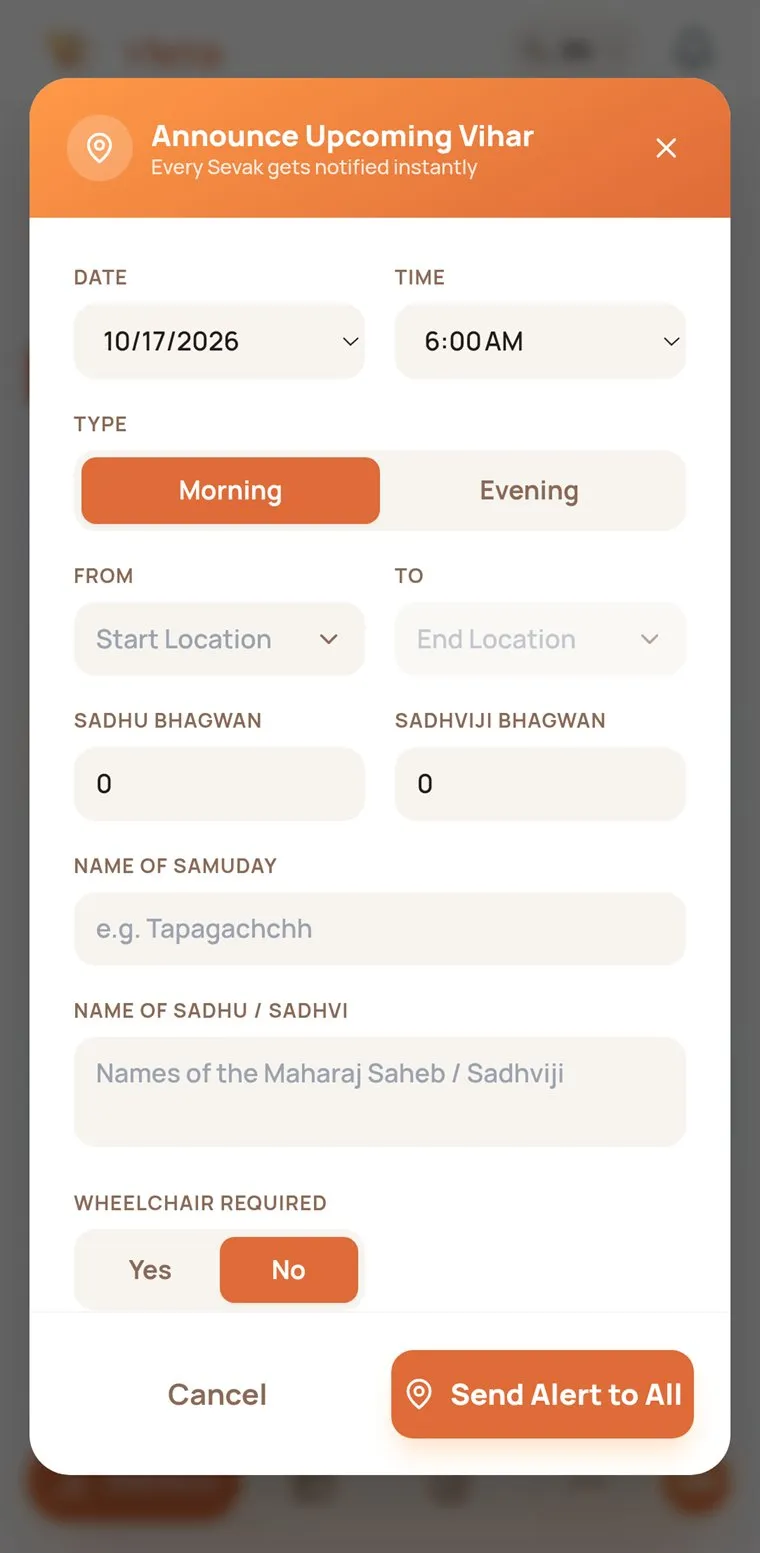
Announce the date, time, route, Sadhu and Sadhvi Bhagwant, wheelchair and car Seva needs, police security and an emergency contact. Everyone in the group is notified, and Sevaks tap I’m Interested.
Reports
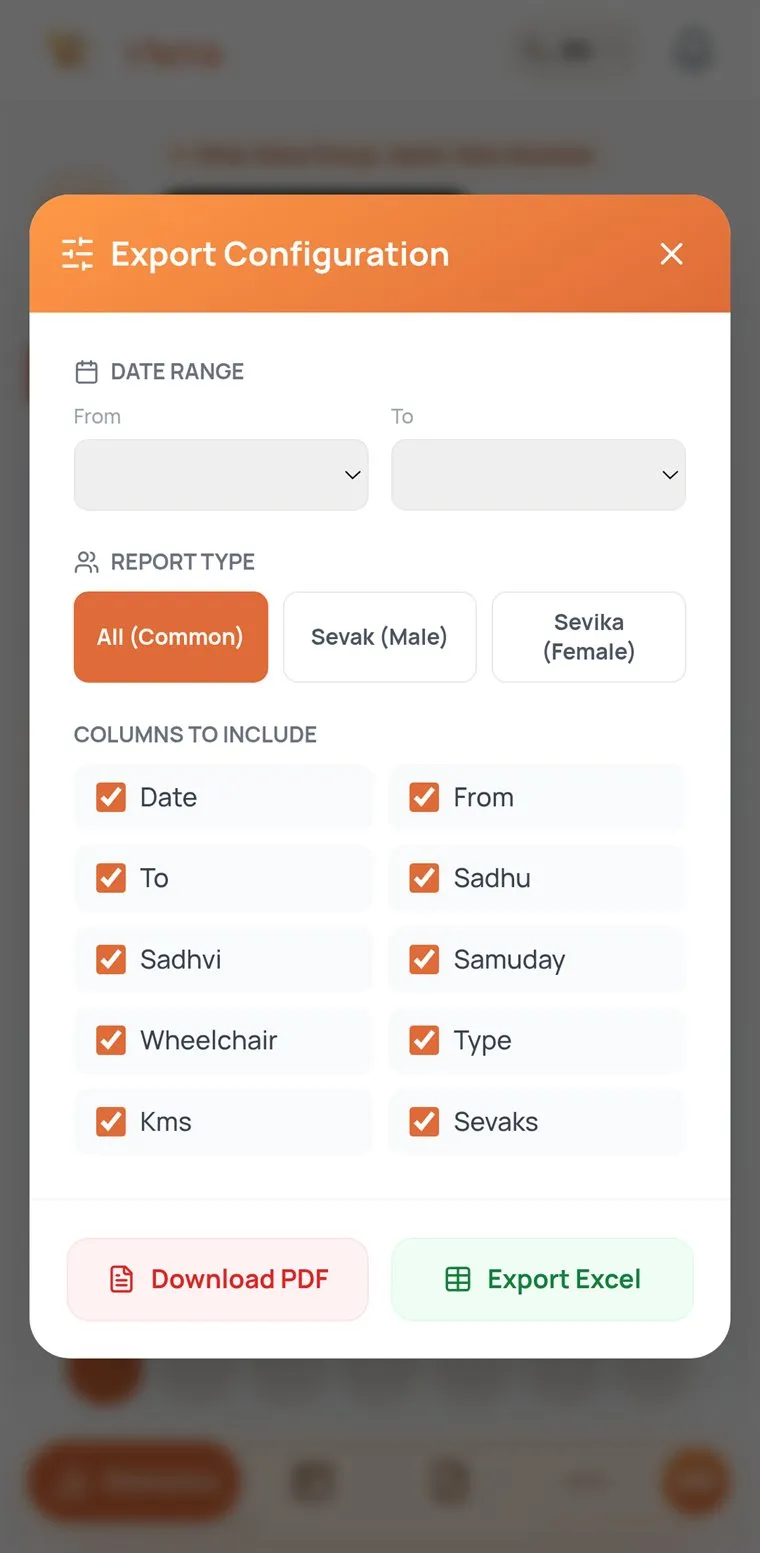
Statistics → Export: choose a date range, the report type and the columns, then download a PDF or Excel file. The member list can be exported from Add Sevaks.
Sevak management
Add Sevaks lists every member with their last Vihar, lets the Captain edit details or reset a password, and shows what each Sevak still has to fill in their profile.
Contacts and notifications
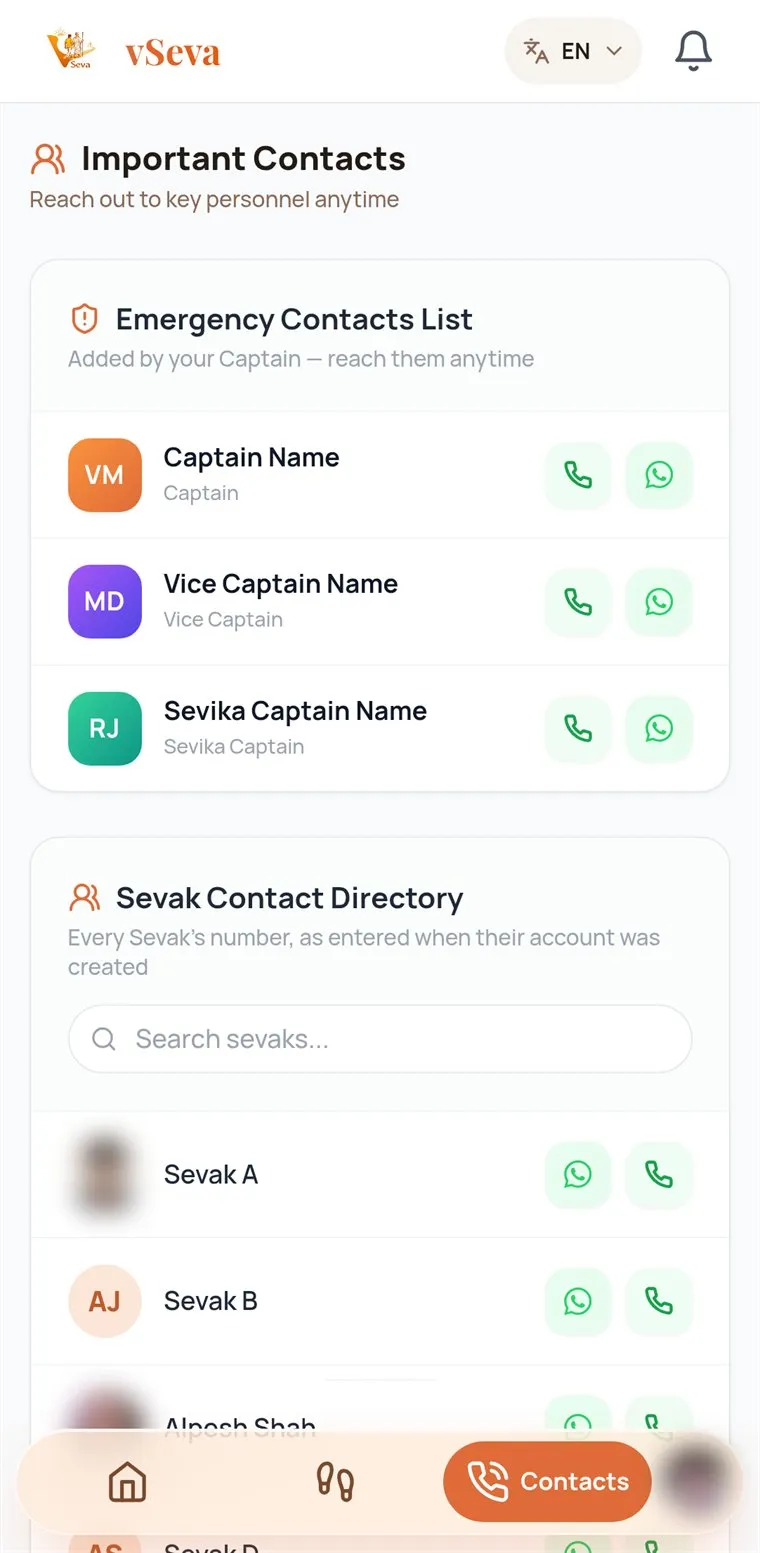
- Emergency contacts are added by the Captain in More → Contacts and shown to every Sevak.
- Sevak contact directory: search a name, then tap Call or WhatsApp.
- Notifications: the bell shows your alerts; tap one to open the right screen.
You are notified when:
- an upcoming Vihar is announced;
- your Captain records a Vihar with you in it;
- a submission is not approved, or one is waiting for the Captain;
- there is a new VChat message;
- you have had no Vihar for several days.
For alerts on your phone: Profile → Push Notifications, and allow notifications for vSeva in your phone’s settings.
Other features
Sharing your Seva
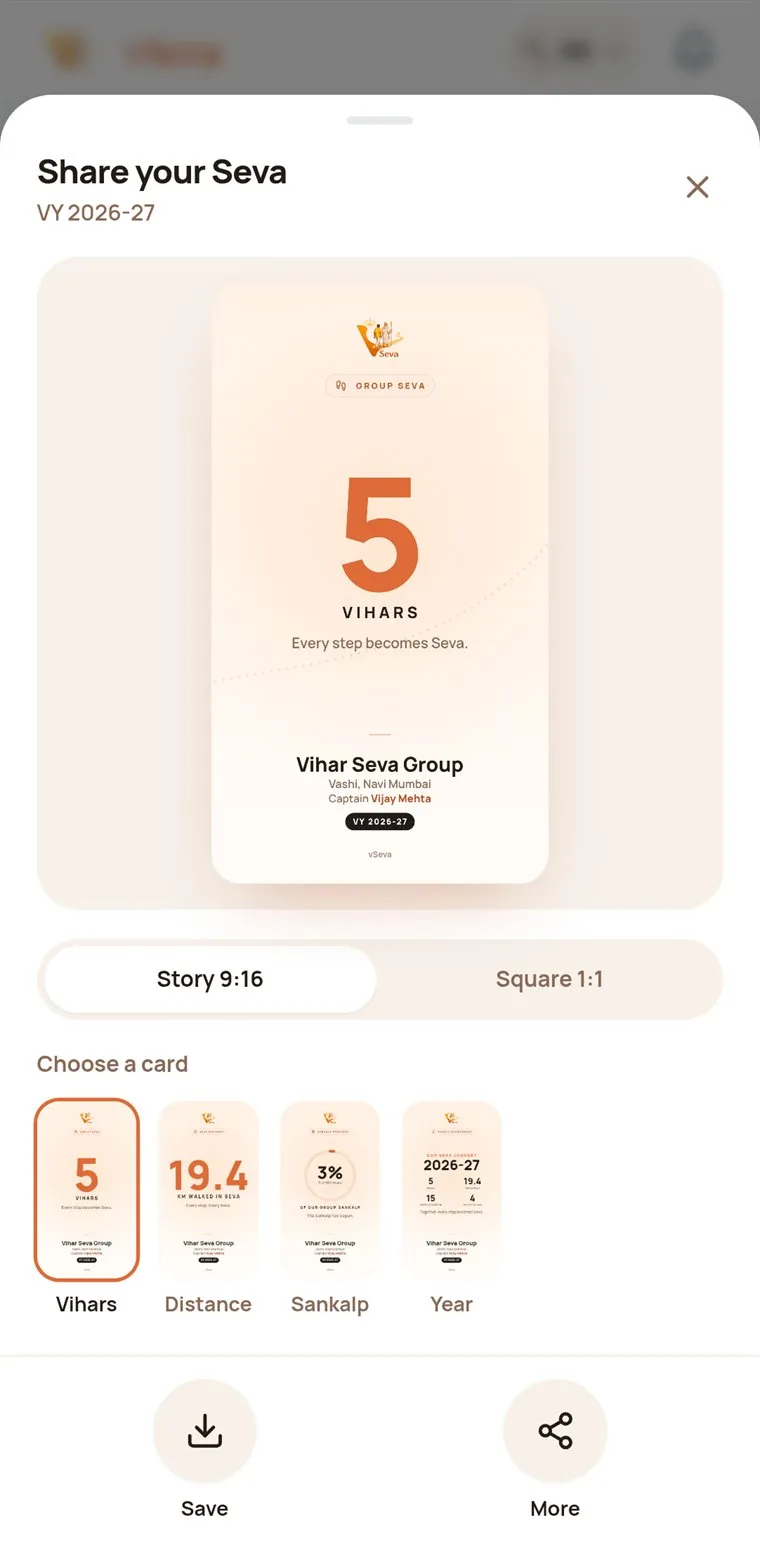
Each Vihar card in My Vihars or View Entries has Save and WhatsApp. The share button next to Your Stats makes a Story or Square card to save or share on WhatsApp or Instagram.
Vihar Seva ID card
Profile → Vihar Seva ID Card shows your card with a QR code. Scanning it opens your verification page with your emergency details. Tap Download PNG to save it, then print or share it.
VChat
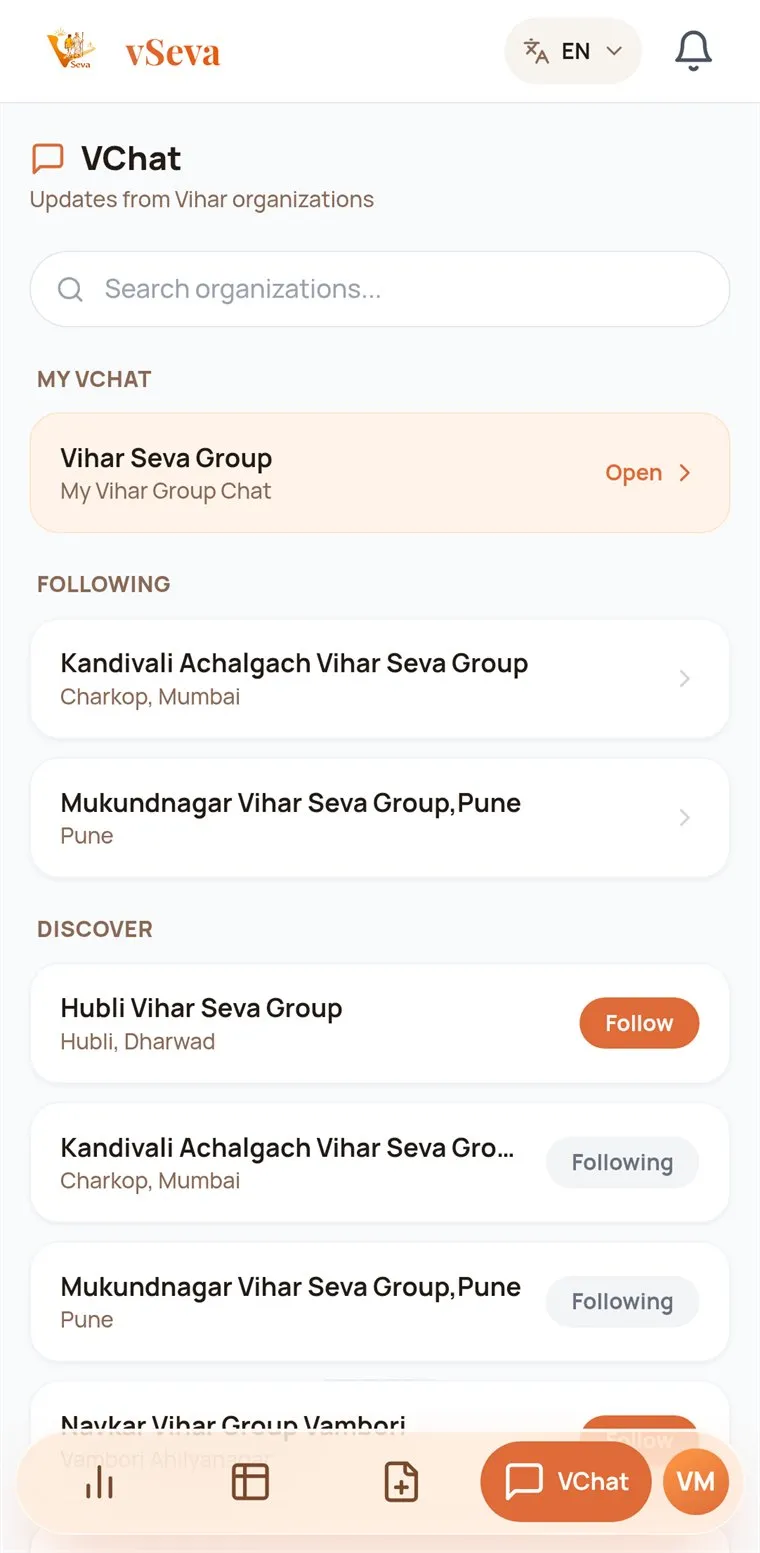
Your group’s own chat. The Captain can follow other groups so members can read their updates, and can choose whether Sevaks may post. Messages are kept for 30 days.
Incidents
Sevaks can report an incident from More → Incidents, with a photo or video. The Captain sees the reports and updates their status.
Community Directory and Nearby Derasar
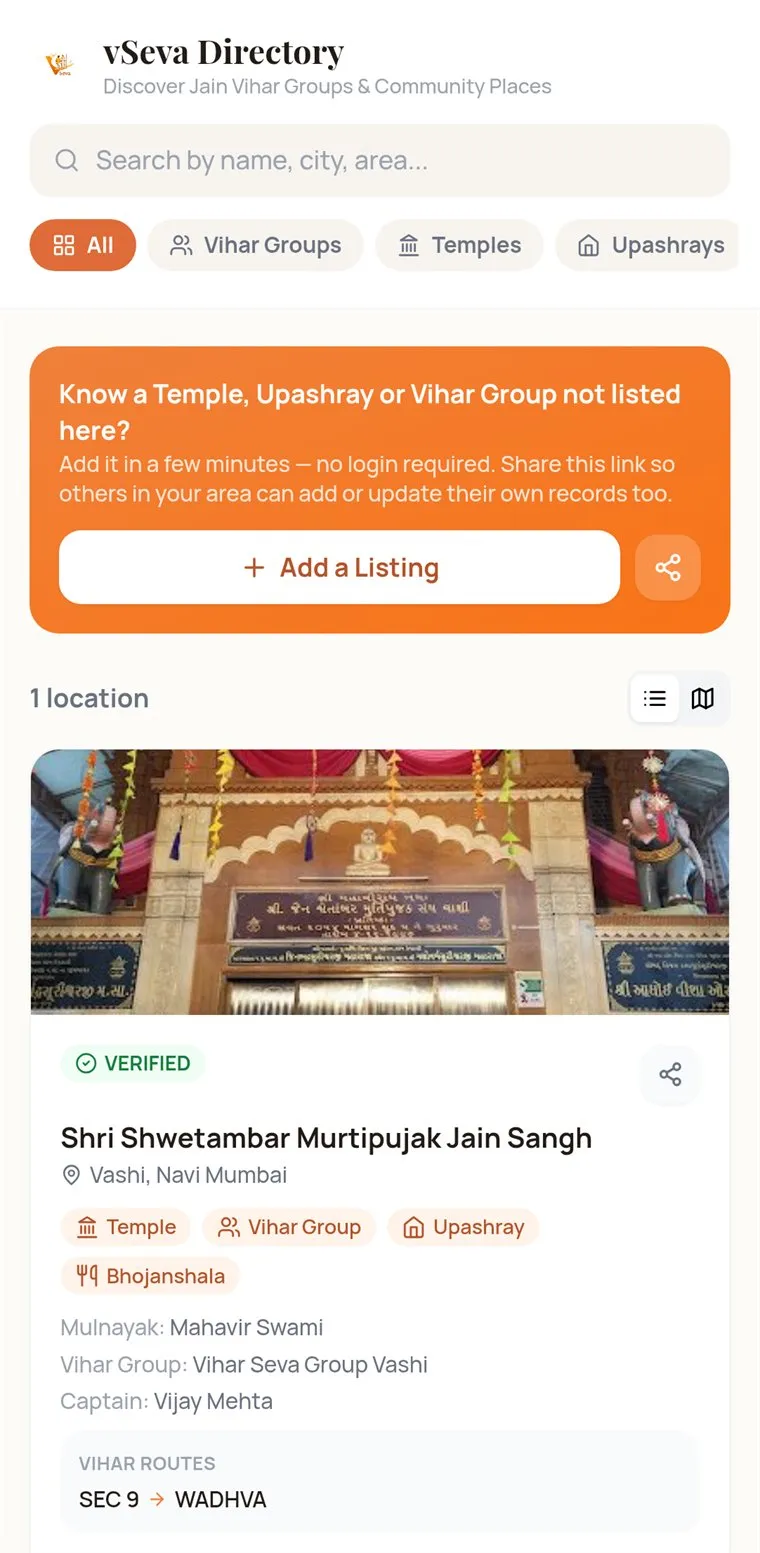
The Jain Directory is a public list of Vihar groups, temples and Upashrays; anyone can suggest a listing, which is reviewed before it appears. Nearby Derasar finds Derasars near you, up to 100 km away, with directions in Google Maps.
Troubleshooting
I can’t sign in
Use the username from your Captain and your mobile number as the password. Still stuck? Tap Forgot Password? and enter your username: your Captain is notified and resets it to your mobile number. Captains get a reset link by email.
“Your session has ended”
Sign in again. Nothing you saved is lost.
My Vihar isn’t in my stats
It is probably still pending. Check My Vihars, and remind your Captain. Please don’t submit it again.
My numbers changed
Check the Vihar Year in the VY menu: statistics only count the selected year.
A route is missing
Ask your Captain to add it in More → Manage Routes.
Save or Export does nothing
In the app, choose where to send the file in the share sheet. On the web, check your Downloads.
No notifications
Profile → Push Notifications → Enable, and allow vSeva in your phone’s settings.
I can’t see a menu item
Some tools are for the Captain only: approvals, editing entries, exports, Add Sevaks, routes and contacts.
FAQ
Can a Sevak sign up on their own?
No. The Captain adds every Sevak, and vSeva creates the login. This keeps each group’s members to the people the Captain knows.
How long does group approval take?
Every group is verified by hand, usually within 24 to 48 hours. Tapping Approve via WhatsApp after you submit speeds it up.
Is there an iPhone app?
vSeva works in Safari on iPhone. Open vseva.vjas.in in Safari, tap Share, then Add to Home Screen to keep it on your home screen.
Why does my Vihar need approval?
So every number in the group’s statistics has been checked by the Captain. Vihars the Captain records count straight away.
What is the Vihar Year?
14 October to 13 July. Statistics and Sankalp follow it, and you can look back at earlier years from the VY menu.
Which languages does vSeva support?
English, Gujarati and Hindi. Tap EN at the top of any screen to switch.
Who can see my phone number?
Members of your own group see the Sevak contact directory so they can call or message each other. Your ID card’s verification page shows your emergency details.
Still have a question?
Message the vSeva team on WhatsApp, or watch the step-by-step videos on YouTube.